Free software · Linux, macOS, Windows
A whole project,
in a single window.
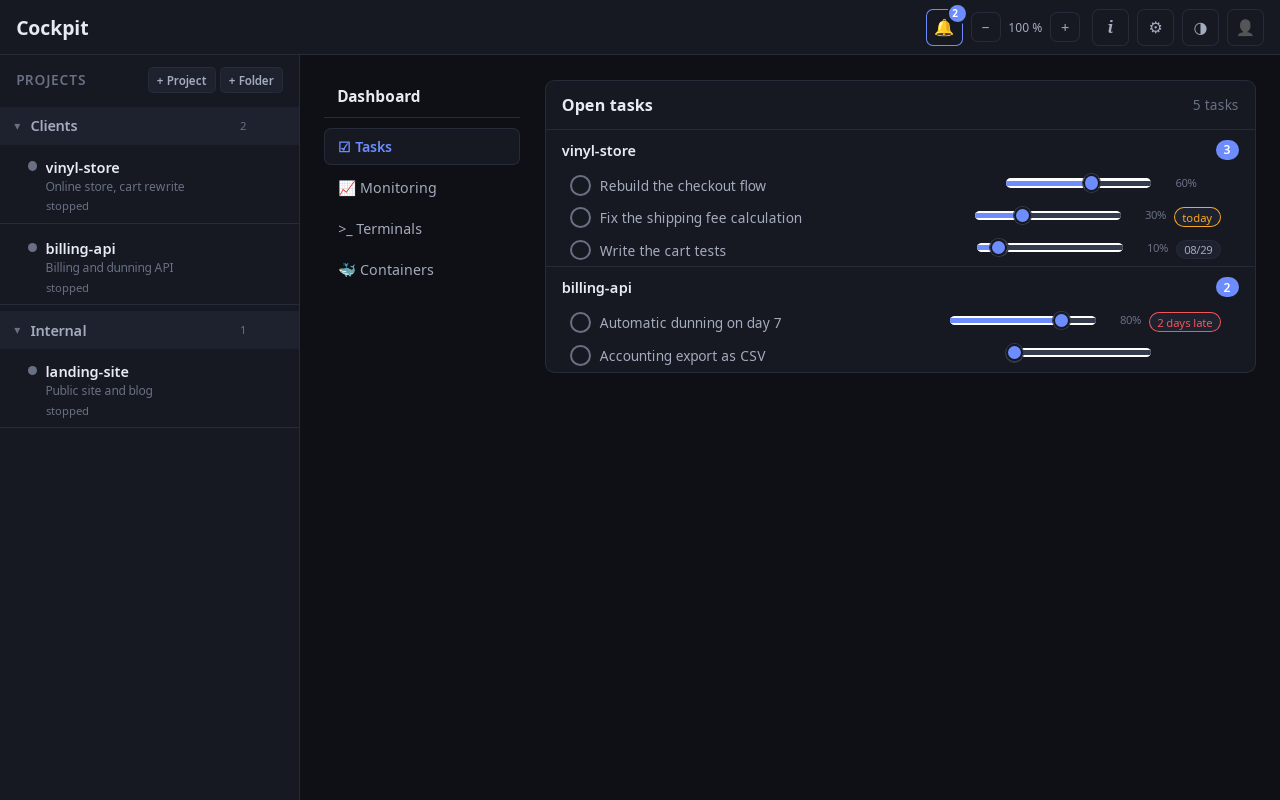
Run your AI agents where you work: terminals that survive closing the window, sessions resumed in one click, and next to them your files, Git, notes, tasks, clusters and tickets. A Cockpit project is a name and a folder, nothing more to set up.
Version 1.0.0 · 10/06/2026 · release notes
01
It keeps running
Close the window: the terminals carry on, screen and history included.
02
Nothing to configure
A name and a folder. No project file, no six-step wizard.
03
Free, and you can check
Public code under the MIT licence. Anyone can read it and build it.
Terminals
They do not die with the window
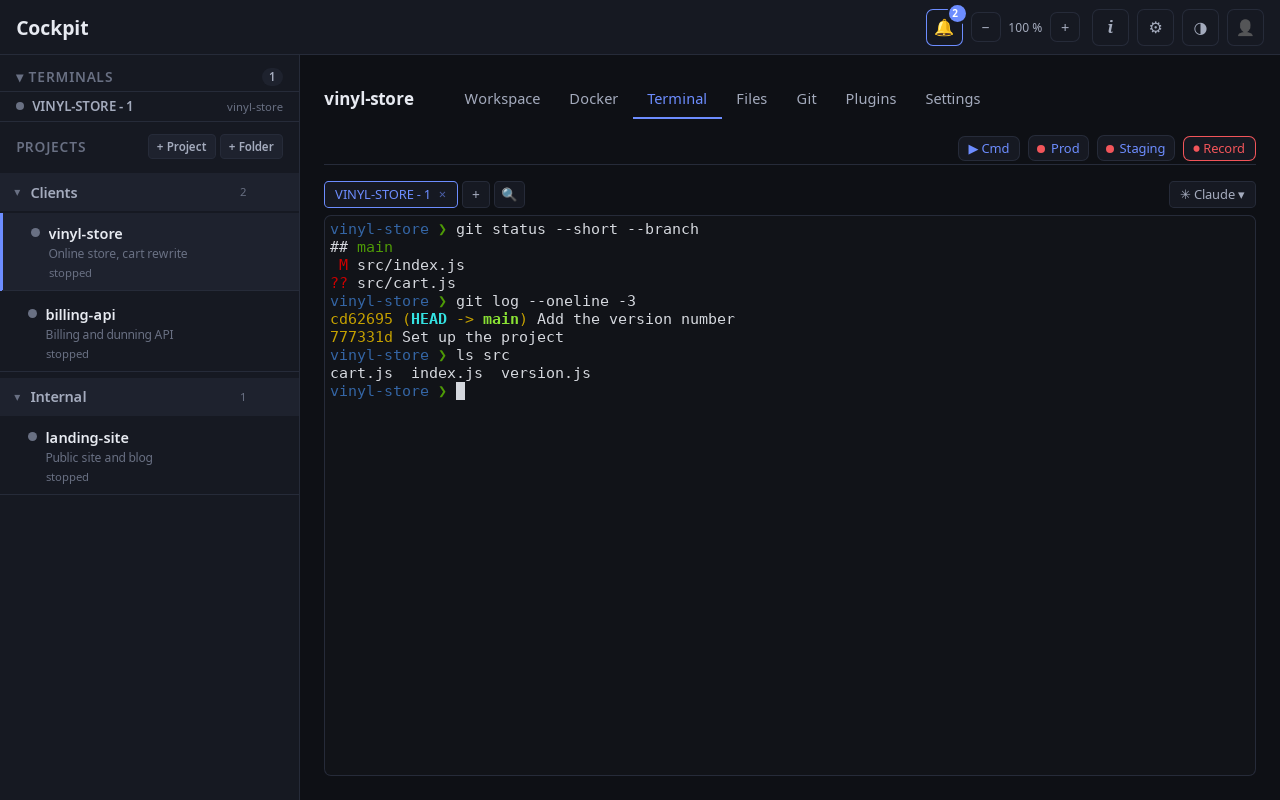
A separate service holds the shells. Close Cockpit, open it again: everything is there, including what you had scrolled back to. Even after the machine was shut down, each tab comes back in its folder with what it was showing. Side-by-side panes, history search, a dropped file types its path, and agent sessions resume in one click.
Git
The diff is where you work
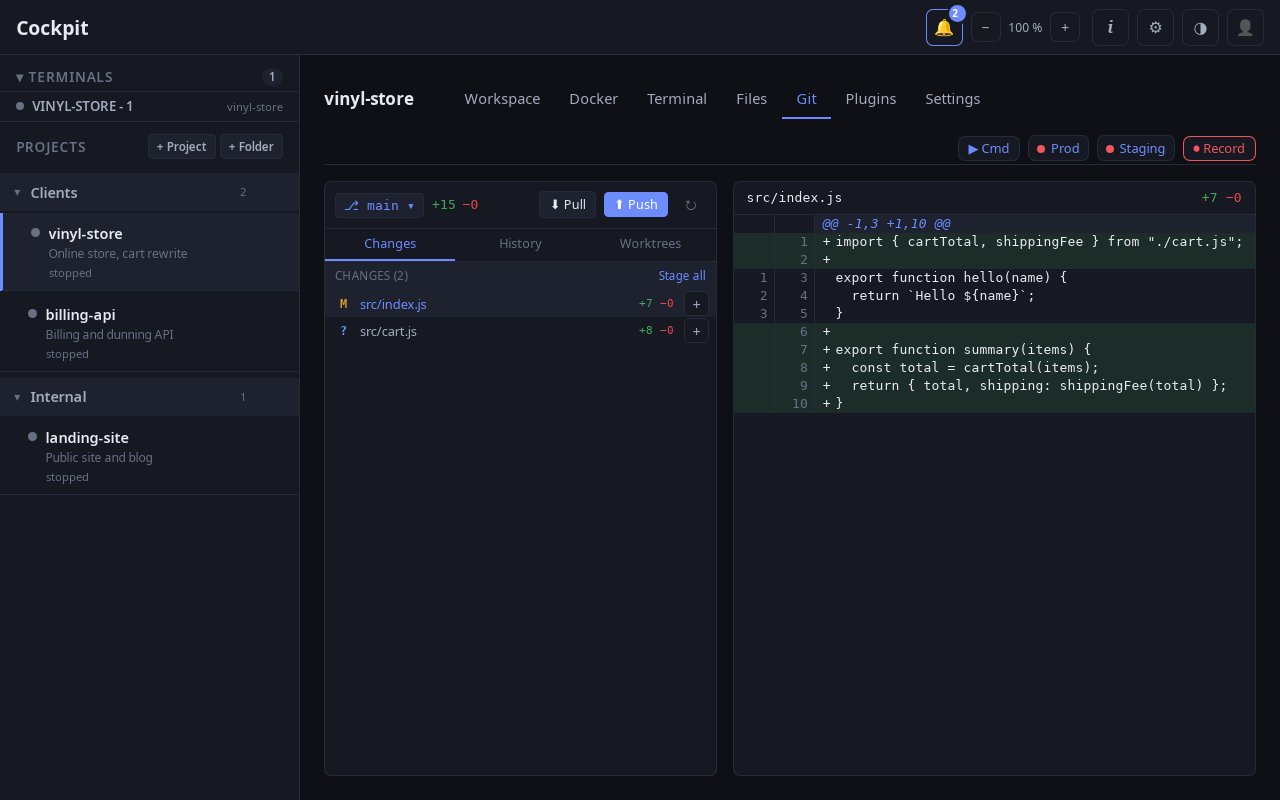
Status, coloured diff, staging file by file, commit, branches, history. And worktrees: one working folder per branch, so several things can run in parallel without stepping on each other.
Files
Read and fix without switching tools
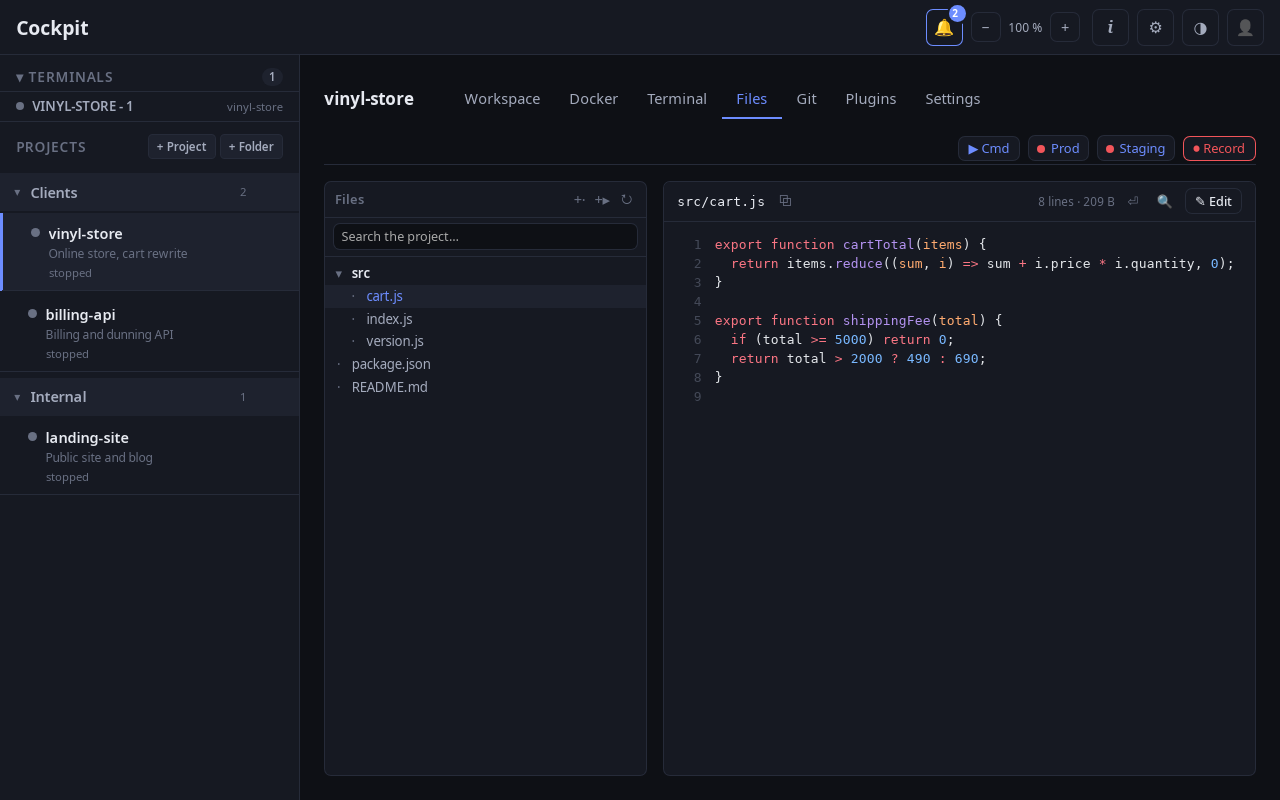
A tree that respects gitignore, syntax colouring for about thirty languages, in-place editing, project-wide search and go-to-definition. The system bin, not a blunt delete.
And also
Everything around a project
Kubernetes
Pick a cluster and a namespace: pods grouped by service, the real reason something fails instead of “Running”, live logs, a shell, and failed pods deleted in one click. CPU and memory charted pod by pod. Cockpit reads your kubeconfig and keeps no secret.
Jira
Cloud or Server: your assigned tickets, on the dashboard and in each project. Change a status, comment, log time, create a ticket. “Start” creates the ticket's branch from an up-to-date main.
Containers
Compose starts in the right order, logs and a shell per container, a machine-wide view with cleanup. Entirely optional: with no compose file, the tab stays quiet.
Tasks, notes and meetings
Tasks with due dates and progress, a bell that warns you, notes in a tree with a rich editor and a reading mode, and a meeting recording transcribed then summarised into a note.
Palette and commands
Ctrl+K goes anywhere: projects, terminals, tabs, files. Declare your usual commands per project and run each in its own terminal with one click. Quick links with their live status.
Monitoring
Processor, detailed memory, disks, processes. An alert when a disk fills up or the machine stays saturated, never on a passing spike.
The AI provider you choose
Claude, Codex, Gemini and more: one setting decides, and the interface only shows what your provider can do. Its instructions, skills and plugins are edited from Cockpit, and its usage is displayed.
Make it yours
Themes, accent colour, wallpaper, zoom that stays sharp down to the terminals. French or English. Database backup in one click.
With an account, if you want one
Your projects from one machine to another
An account is all it takes to find your projects, notes and tasks on another machine. Paths stay local to each computer — they do not exist anywhere else.
Cockpit works without an account, and keeps working offline. Syncing is an extra, never a condition: if the server is unreachable, everything works the same.
- 01Sign up with a password or with Google
- 02A machine signs in from the app, with nothing to copy across
- 03Each machine signs out separately
- 04Deletions travel, and they do not come back
Download
Pick your system
The binaries are not signed. On first launch, each system shows a warning you have to dismiss by hand. On Windows 11, when Smart App Control is on, it blocks Cockpit with no way around it: turn it off in Windows Security, App & browser control. That is a choice: a publisher certificate is expensive, and the code is public, so anyone can read it and build it themselves.
All releases